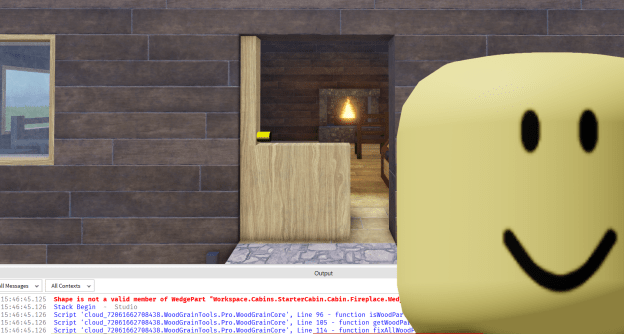
Hello there plugin users of Roblox, WoodReviewer here with part of of my nearly once a decade blog post where someone tries to make a plugin to fix all the issues with wood grain in any game with a single click of a button. Today’s attempt is Wood Grain Tools by FracturedSkies. Also thank you to the 50 people who all tagged me in response to his Tweet, I would have responded with a Tweet but I felt like this deserved a proper review. So, how exactly do you review a plugin? Well I’d like to introduce you to a friend. This is Greg.
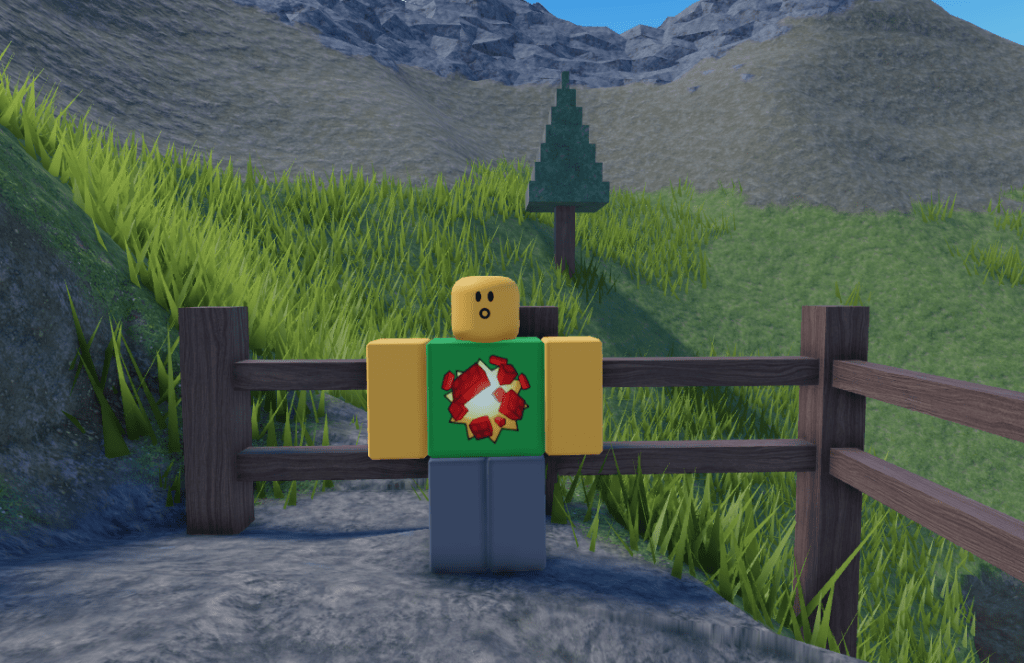
Greg is a long-time Roblox dev but stepped away for a few years after someone bullied him off the platform. I’m not going to name names, but he deserved it. Anyway, Greg is going to be exploring the default Roblox start place, building in it and fixing wood grain as he goes.
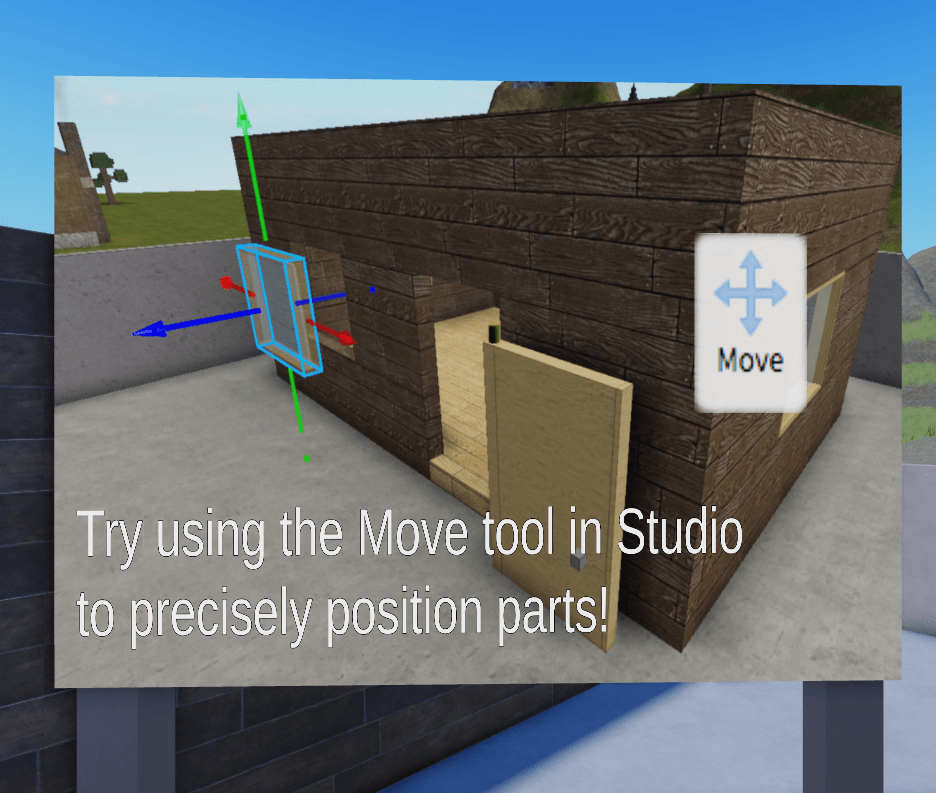
When he first opens the place in studio one of the first things he sees is this sign telling him how to move parts around in studio on this house.
However after many years of being publicly shamed by me Greg quickly realizes that his door has bad wood grain, so he decides to do the smart thing and run the “Fix All Wood Grain” button in Wood Grain Tools to fix it. Bam, wood grain solved forever.
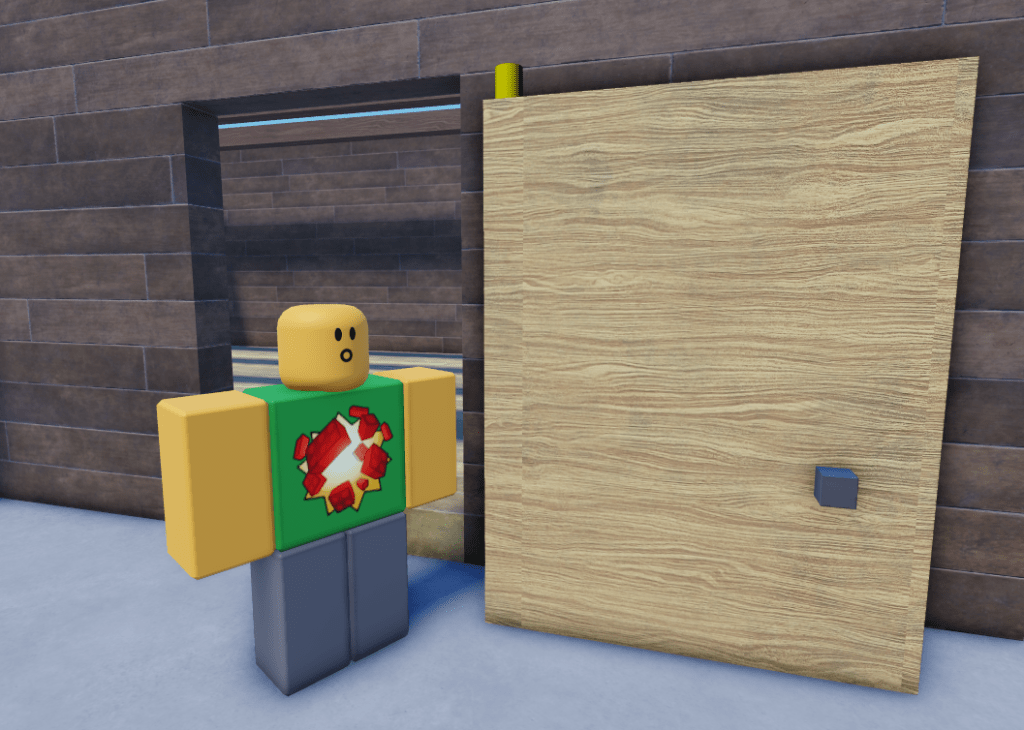
…Uh oh, that bright red, bolded text isn’t good. And the wood grain in still broken.
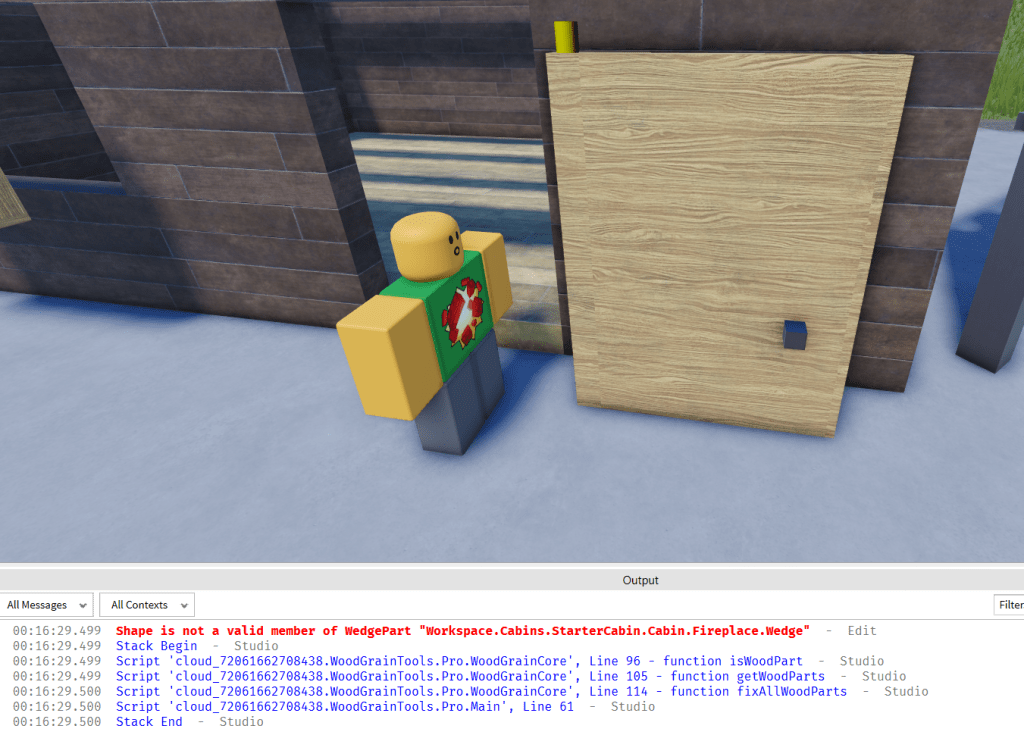
Not wanting to go through an unfamiliar place to find what is causing it, I decided that Greg can try one of my old advent calendars to see if that works and it is broke again. Still, at least here I know what part it is talking about since I made my calendar.
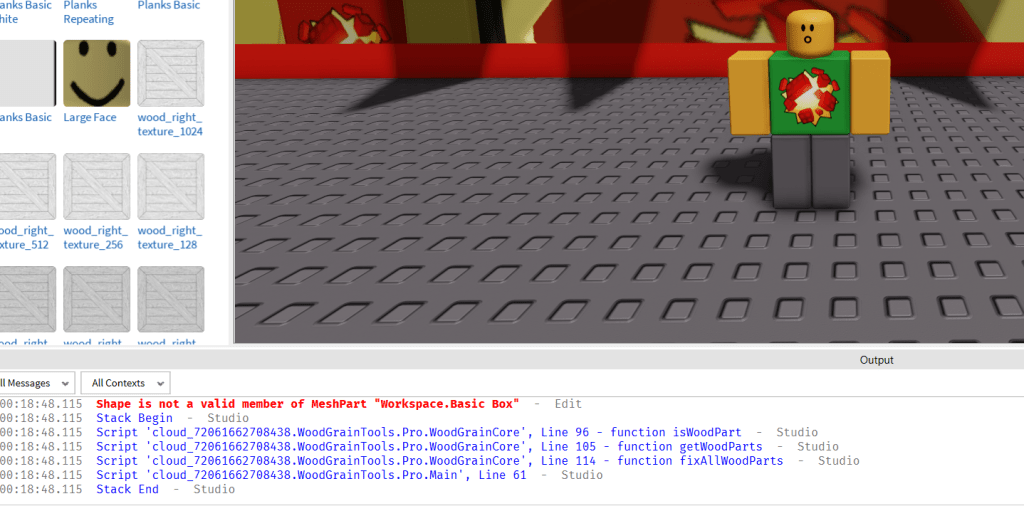
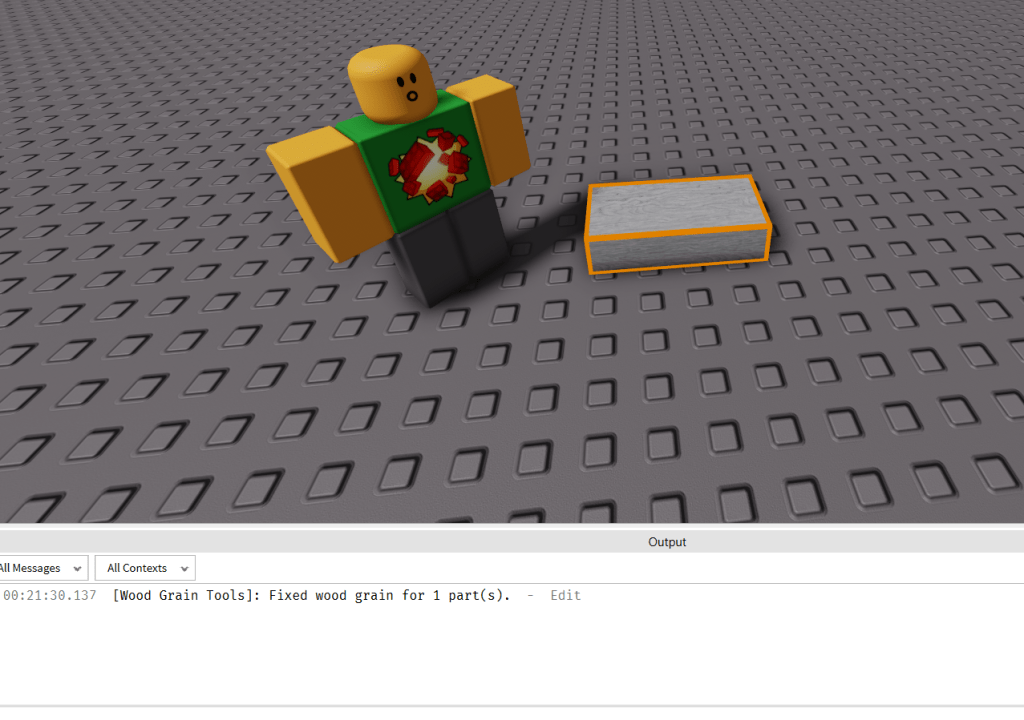
So now in a third place, an empty baseplate with a brick, it is time to test it.
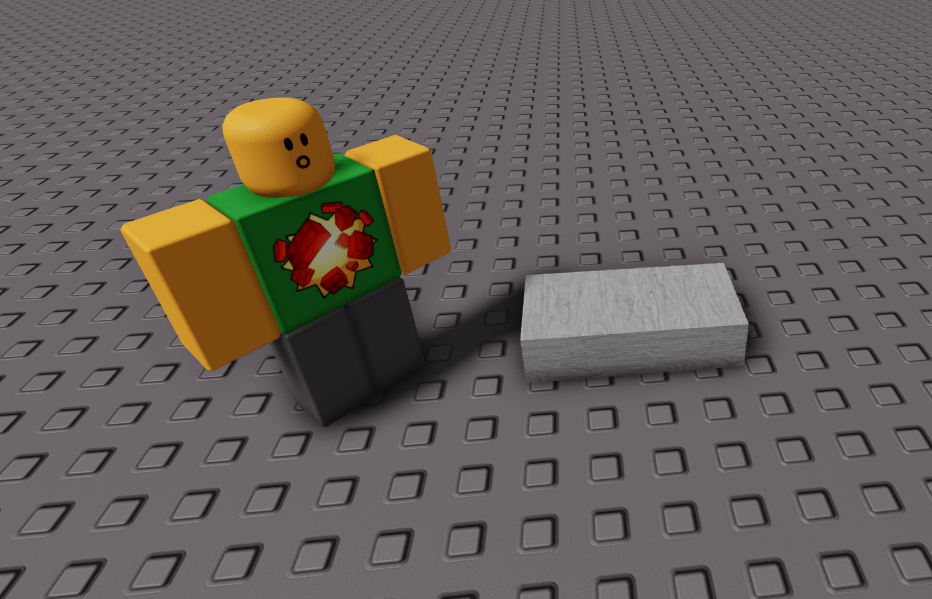
And it works.
And now to test it with a mesh part from my calendar and…
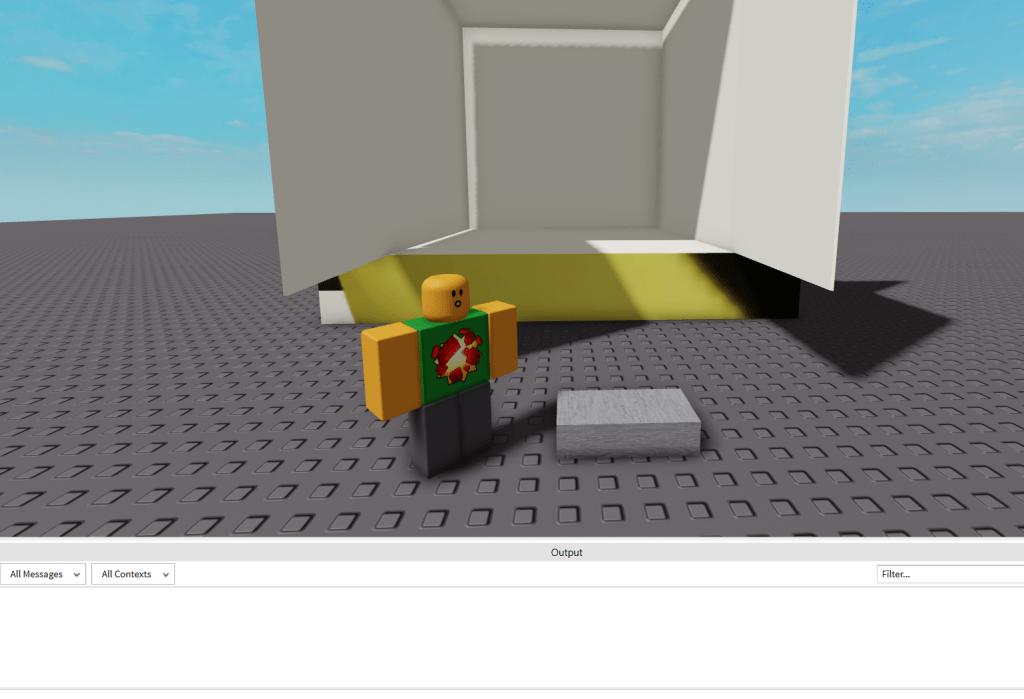
…Mesh parts completely break the “Fix All in Workspace” button. Now I know that in the Dev Forum post mentions that it won’t fix the wood grain of mesh parts and unions, but breaking the “Fix All in Workspace” button, the main selling point of the plugin, seems like a pretty big oversight.
Oh and just one more thing, it also doesn’t run if you have Vehicle Seats, Wedge and Corner Wedge parts, or Trusses in the Workspace.
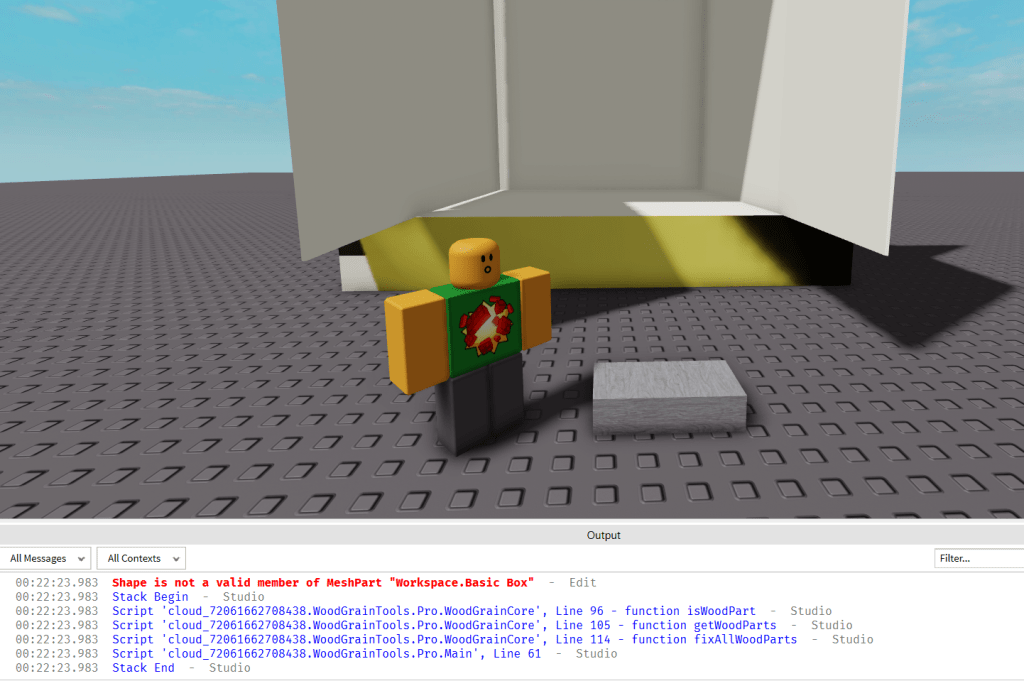
So just a slight setback, but still, at least we can manually select parts and fix the wood grain that way. So now back to the door…
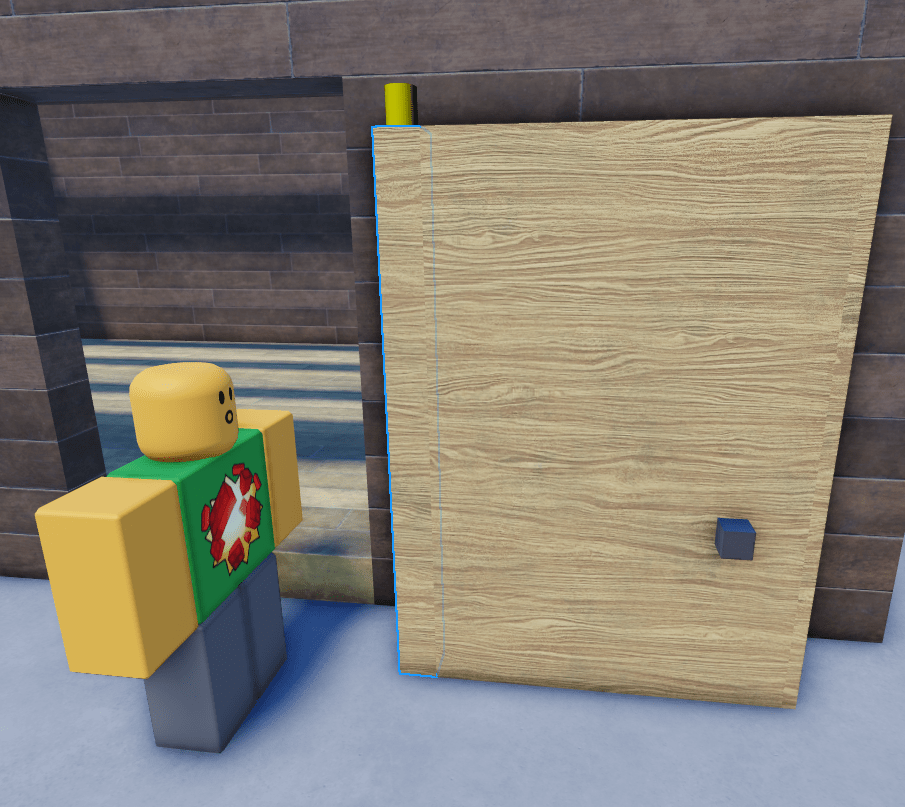
Well, it kind of worked. It did fix the wood grain, but it seems to not work with constraints which is another letdown to the who sales pitch of just pressing a button to fix wood grain.
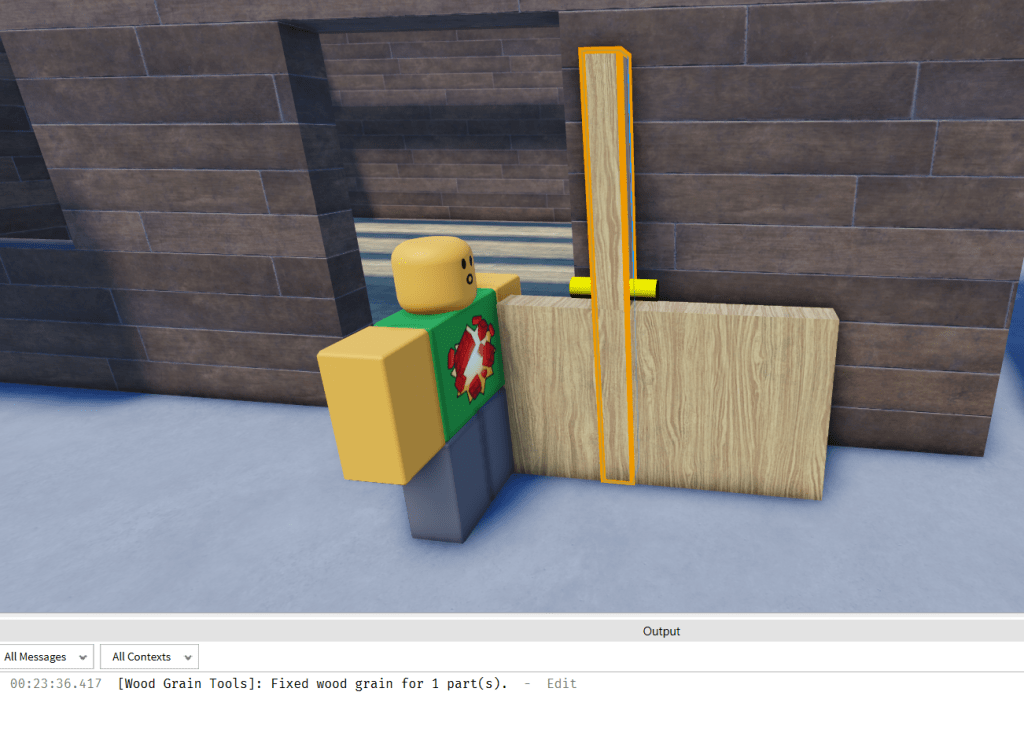
Anyway enough of that door for Greg. He is now interested in taking this dining room table and enclosing it in a room.
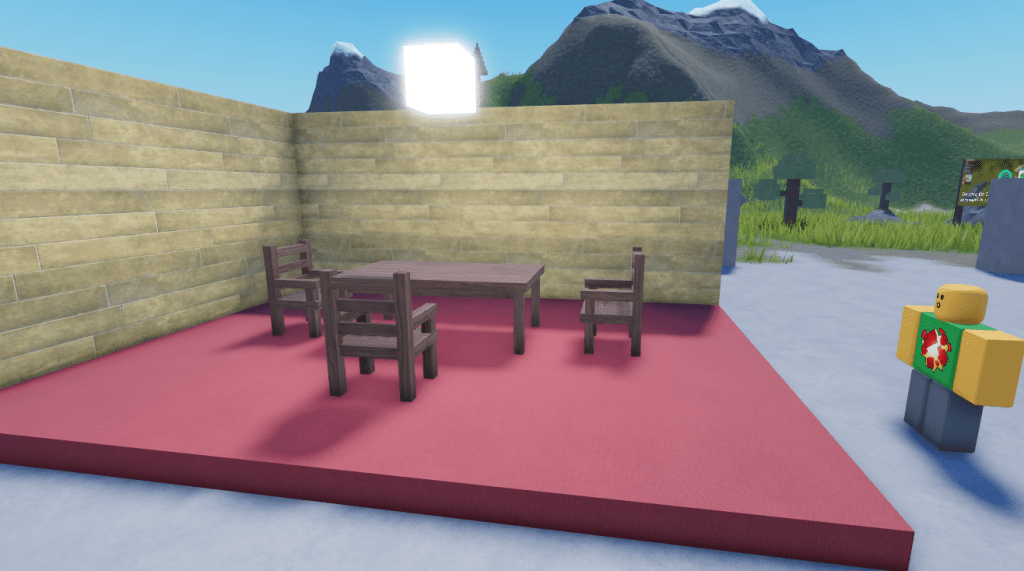
Something like this, just different.
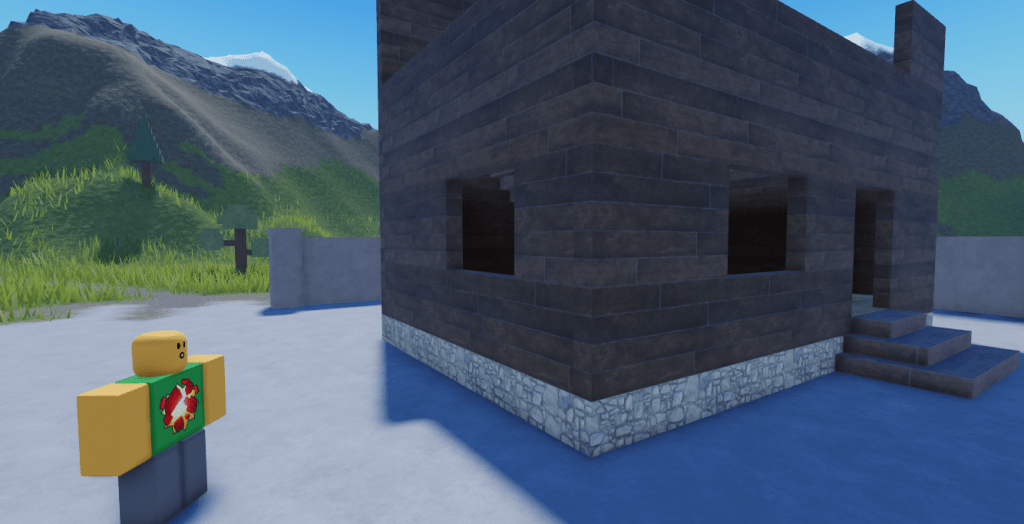
Several minutes of building later and he kind of did it but oh no, the siding of the house is in all types of different directions. I wonder if we can fix it with this plugin…
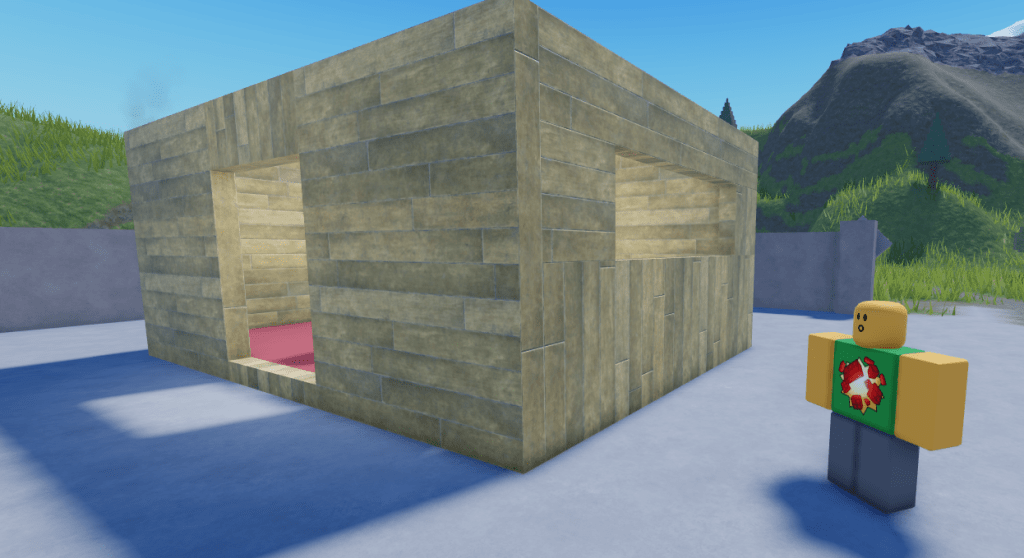
…And it did almost nothing. I mean, it did fix the end faces on some of the wooden planks, but let me zoom in on the doorway a bit.
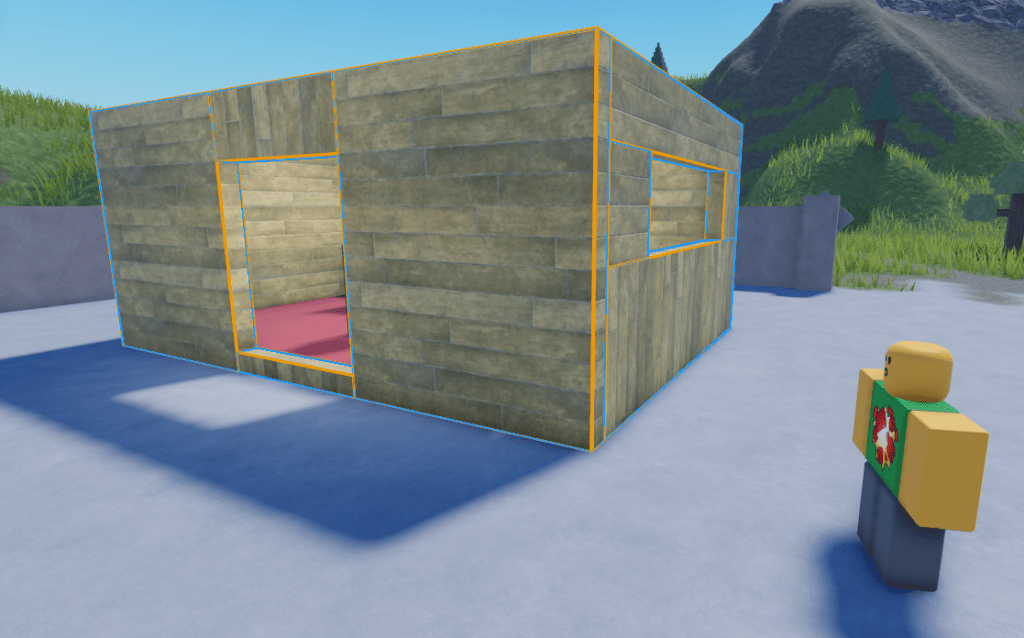
While you want this piece of wood to be sideways for the sill, there is nothing wrong with these planks. Sure, they aren’t structural, but there is nothing wrong with blocks of wood stacked next to each other.
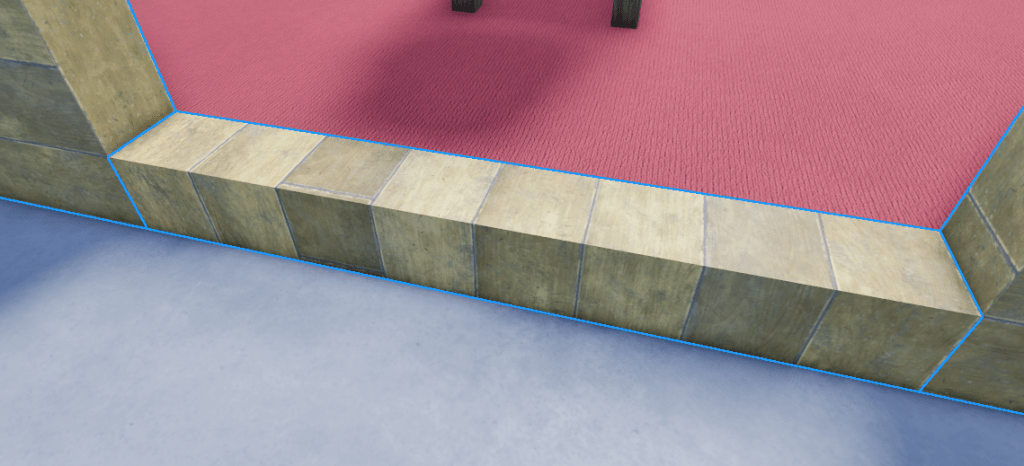
However, after running the plugin this happens.
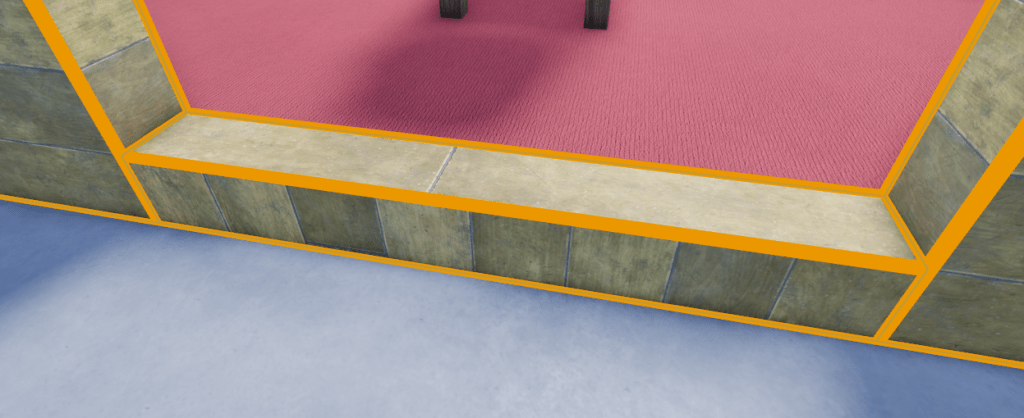
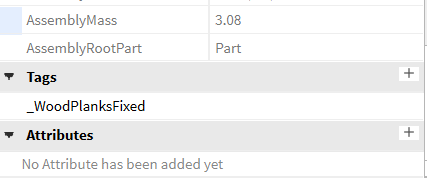
Now, here is the kicker. If you want, you can get the plugin to fix it, but every time it fixes wooden planks it adds a tag that causes the plugin to ignore it on future attempts to fix the wood grain. This means you either have to manually fix it, or remove the tag and fix it that way.
This made me curious. The plugin claims it can fix end grain for wooden planks, but does it? Thankfully for Greg and I the starter place has some wooden signs around the map to test the plugin out on.

The only issue is that the wood grain on these signs is already correct, but if it is correct it should be no problem for this plugin to do nothing and leave it as is.
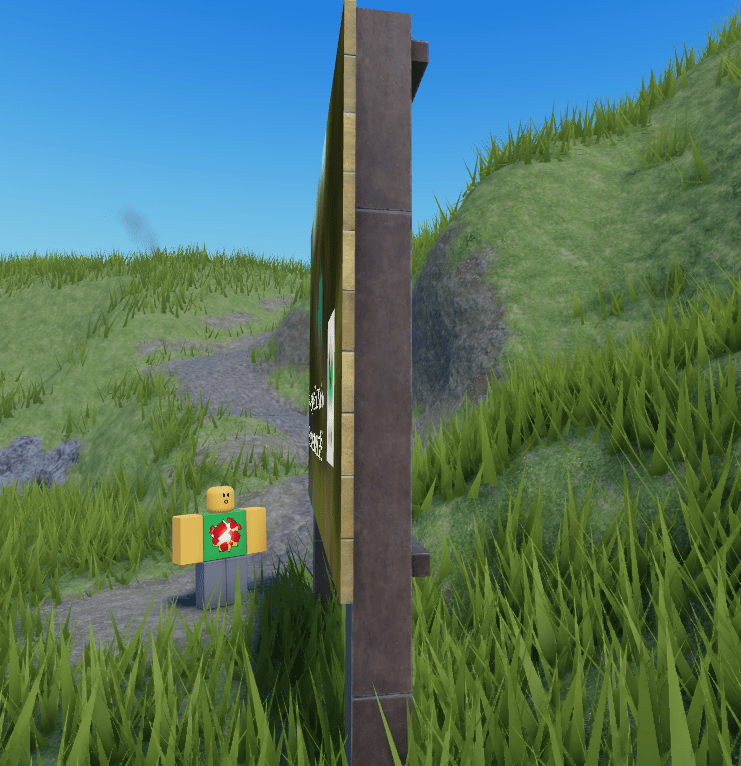
…Oh no…
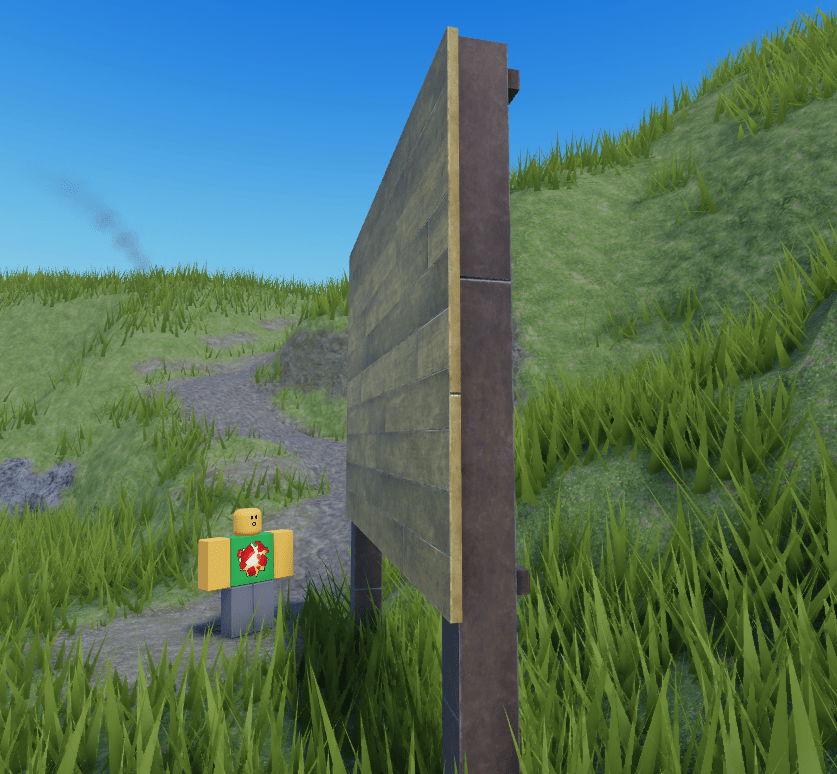
“But WoodReviewer” you might be thinking, “Isn’t it unfair to force it to fix these signs?”
Well, yes, but no. The only reason I am forcing it to fix these signs is because the “Fix All In Workspace” button is broke in the starter place. If I take it to an empty baseplate and press the button, then guess what happens?

Yup, the same thing. The end grain is broken, and the surface GUI is broke. Plus, the wooden planks get locked in, unable to be edited by the plugin due to the tag added to them.
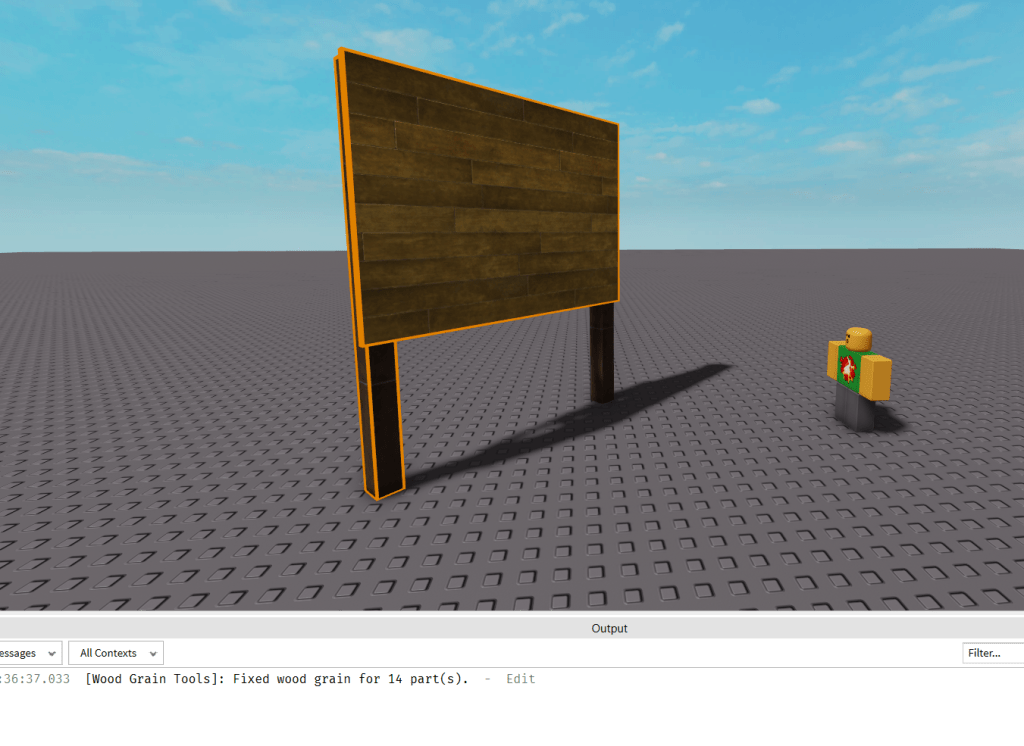
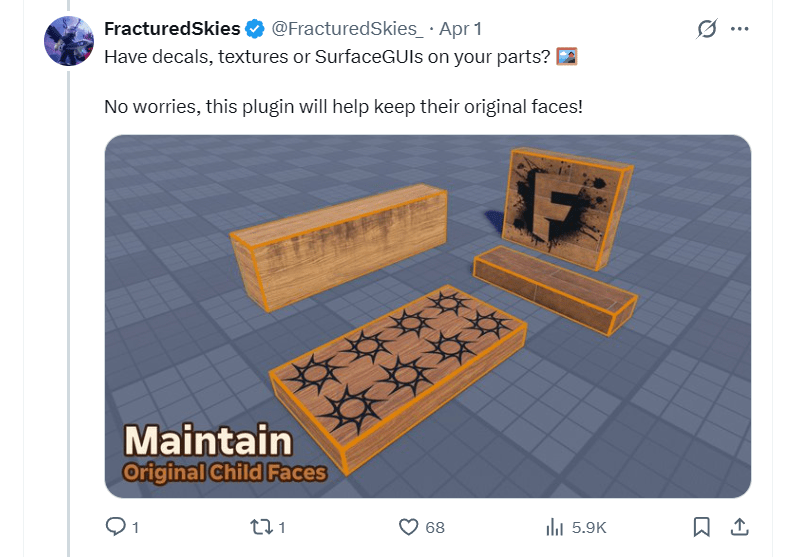
And as for the surface GUI breaking? Well, I assume that is a bug because it is specifically stated they are supported, but clearly something is off.
So, what exactly do I think of this plugin? Honestly, the paid version is just broken with the “Select Wood Parts” and “Fix All in Workspace” buttons breaking completely if you have Wedge Parts, Corner Wedge Parts, Vehicle Seats, Mesh Parts, Trusses, or any Union anywhere in workspace. I mean, sure, you can export models to a test place and try it, but then you have to reimport them to the main place and it just creates a hassle. And as for the part of the plugin where you can select parts manually? Well, it is OK. If you read my old post on DataBrain’s original plugin, nothing in this new plugin addresses any of the odd edge cases I outlined there.
Honestly, this plugin just isn’t worth it. It requires just as much knowledge to use to tell what is and isn’t broken with how it just doesn’t work for wooden planks. Additionally, it doesn’t even replace Material Flip plugin by Stravant because you can’t use this plugin to fix non-wood textures issues like on bricks, fabric, roofing tiles, or just regular textures, and as someone whose plugin bar is already filled there is no way I could ever justify this new plugin over Stravants to do the same thing.
Sorry, I was really hoping this post would be more positive and would just outline edge cases and gotchas to highlight that even with this plugin you still need a basic understanding of wood grain, but the plugin just doesn’t work at a fundamental level.


insightful from WoodReviewerRBX
LikeLike
Absolutely fire vlog my fine king
LikeLike
Poor greg, but really. He deserved it.
LikeLike